Powered By Blogger
Showing posts with label hacking. Show all posts

Saturday, July 3, 2010

Some Quick Tips on How to Speed Up Your Computer - Simple Ways to Make Your Computer Run Faster

It is 2010 and if you look back over the past thirty years it is amazing how our lifestyles have changed. Who would believe that the majority of us now consider a computer as an essential commodity in our lifestyles and we would be unable to work properly without one. One of our common questions these days is how do you speed up your computer?

As so many of us rely on computers for our work, if our computer is running slow then our work suffers and we cannot complete our job in the allocated time. This leads to frustration and annoyance and in order to resolve this we look for ways to speed up the computer. If you do not know anything about computers your first option will probably be to contact a computer engineer to sort it out and speed up the PC. This can be an expensive route and in reality there are a few things you should try yourself first which should prove a lot less expensive and should help speed up your computer.

Over time I have learned many simple ways to speed up my computer before I even think about asking an engineer to check it out.

1 The first thing you should check for is how much memory your computer has. I remember one of my first computers had a RAM of 2 Meg. Although at the time I thought this was fantastic, things have moved on from there and now the average computer has 1 to 2 gigabyte of ram as our requirements and usage of the PC has increased dramatically. If your computer is running slow then you should see if you can increase the memory first and you will definitely see that this will speed up your computer. Some motherboards will accept up to 4 gigabyte so it is worth looking into that.

2 If you are working on your computer all the time you will have collected a lot of unnecessary files over time. By just deleting all these unwanted files will help speed up your computer.

3 Defragmentation of your computer is another way to increase the speed of the PC. Although this sounds like a complicated thing to do it is actually very simple but it can take quite a few hours to complete so I would suggest you set this task to perform overnight, unless you have several hours to waste. In order to defragment your computer you need to access your disk defragmenter. You will find this if you go to all programs, click on accessories then go to system tools, you will find the defragmenter there. This should speed up your computer as well.

4 After implementing these steps and your PC is still running slow then your next step should be to scan your registry for errors. You can get a free registry scan to find out if your registry has problems,you should be aware that maintenance of the registry is a necessity and if it shows errors then you should run a suitable registry cleaner for your computer on a regular basis. Make sure the registry cleaner you use has a back up facility just in case it deletes any important data. If you do this you will find that this will help stabilise the speed of your computer.

Hopefully by implementing these steps you will notice a significant change in the performance of your PC.


Article Source: http://EzineArticles.com/?expert=Lilian_Dabrai

Monday, September 29, 2008

IE 7.0 bypass genuine

How to Install Internet Explorer 7.0 Bypassing Genuine Windows Validation...

Internet Explorer 7.0 is the long awaited tabbed web browser by Microsoft. Nearly four years after the release of Internet Explorer 6.0, in the face of growing competition from Mozilla's Firefox, Microsoft has finally given the old IE platform a facelift. Optimized design along with new cool interface, favorites centre, search box, RSS feeds and most importantly easy to use tabbed browsing are the exclusive features of this new internet explorer.

You must have Windows XP Service Pack-2 (SP2) in order to install Internet Explorer 7.0. But still you will face a problem while installing this new Internet Explorer if your copy of Windows XP is not a genuine (non-pirated) one, since IE 7.0 installation requires genuine windows validation!!! So what to do??? Don’t worry… There are some tricky steps through which you can install IE 7.0 even in your pirated copy of windows XP bypassing the genuine windows validation. You just have to follow the following steps one by one:
  1. Download Internet Explorer 7.0 installer from the Microsoft site. You have to choose Windows XP Service Pack 2 (SP2) as your operating system. Remember you can’t install IE 7.0 if service pack 2.0 is not installed in your operating system. And if you are facing genuine windows validation problem while downloading IE7 installer from the Microsoft site, can also download this installer alternatively from here or directly from here.

  2. Extract the downloaded Internet Explorer setup file (IE7-WindowsXP-x86-enu.exe) using WinRAR to a directory (IE7-WindowsXP-x86-enu).

  3. Download the patched iecustom.dll and then copy-paste it to the update folder (IE7-WindowsXP-x86-enu\update\) and click yes when asked to overwrite.

  4. Now, download normaliz.exe . Then copy this exe file and paste it in your “c:\” drive.

  5. Run ‘update.exe’ in the update folder (not iesetup.exe!!!). At the end, you have to choose ‘Restart Later’ (not Restart Now) option to finish the running process of the exe file.

  6. Now you have to download normaliz.dll and then copy-paste it to “c:\windows\system32\” directory (in order to prevent problems with the file not being found after the installation). And then reboot/restart your pc.

  7. After rebooting your pc, you may face a problem with a file called normaliz.dll that can not be found by explorer.exe. If you’re having this problem, you will find your desktop blank.(If you are not facing this problem then just go to step 8) In order to fix this problem, you have to do the following things one by one:

    1. Press ctrl-alt-del to go to the task manager.
    2. Go to “File -> New Task (Run…)” in the task manager.
    3. Type: ‘C:\normaliz.exe’ (excluding quotation marks) in the ‘open’ field and then press the ‘ok’ button.
    4. WinZip Self-Extractor - normalize.exe’ window should popped up and then press the ‘unzip’ button.
    5. Reboot your pc and yahoo!!! now you can see your desktop contents!!!.

  8. Now you have to run ‘xmllitesetup.exe’ in the update folder. This step is very important, because somehow if you forget to run this ‘xmllitesetup.exe’ , IE 7.0 will be installed in your PC without it's toolbar!!!

  9. Then reboot your pc again, run Internet Explorer…and you are done!!!

Sunday, September 28, 2008

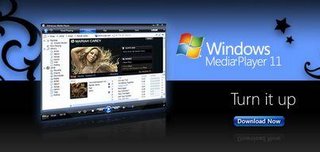
Install Windows Media Player 11.0 Bypass Genuine

How to Install Windows Media Player 11.0 Bypassing Genuine Windows Validation...

Windows Media Player 11.0 is the latest Media Player by Microsoft. It offers great new ways to store and enjoy all your music, video and pictures along with its new cool look. You must have Windows XP Service Pack-2 (SP2) in order to install Windows Media Player 11.0. But still you will face a problem while installing this new Windows Media Player if your copy of Windows XP is not a genuine (non-pirated) one, since WMP 11.0 installation requires genuine windows validation!!!


But there are some tricky steps through which you can install WMP 11.0 even in your pirated copy of windows XP bypassing the genuine windows validation. You just have to follow the following steps one by one:
  1. Download Windows Media Player 11.0 (make sure its the final and latest version, not beta) from the Microsoft Site. Alternatively, you can download the installer file directly from here. Remember you can’t install Windows Media Player 11.0 if service pack 2.0 is not installed in your operating system.

  2. Extract the downloaded Windows Media Player setup file (wmp11-windowsxp-x86-enu.exe) using WinRAR to a directory (wmp11-windowsxp-x86-enu). Now make sure you have a LegitLibM.dll” file in the extracted “wmp11-windowsxp-x86-enu” folder.

  3. Download the patched LegitLibM.dll and then copy-paste it to the “wmp11-windowsxp-x86-enu” folder and click yes when asked to overwrite.

  4. Now run “setup_wm.exe” file in the “wmp11-windowsxp-x86-enu” folder.


  5. Restart your PC, then run your Windows Media Player and you are done!!!

Saturday, September 27, 2008

Install Windows Defender Final bypass genuine

How to Install Windows Defender Final bypassing Genuine Windows Validation...

Recently Microsoft has released the final version of Windows Defender, the Free Anti Spyware from Microsoft. But still you will face a problem while installing this new Windows Defender if your copy of Windows XP is not a genuine (non-pirated) one, since Windows Defender installation requires windows genuine advantage (WGA) validation! SO what to do ??

But there are some tricky steps through which you can install Windows Defender Final even in your pirated copy of windows XP bypassing the genuine windows validation. You just have to follow the following steps one by one:
  1. At first, download Windows Defender Final from the Microsoft Site. Alternatively you can download it directly from the link below (32 bit or 64 bit processor):


  2. Then download Orca (a .msi package editor) from the link below:


  3. Now extract Orca, you have just downloaded, using Winzip or any file decompressing tool you like. And then install it (Orca.msi) in your PC.

  4. Now right click on the WindowsDefender.msi, you have downloaded in step 1, and select 'Edit with Orca'. Then Windows Defender will be opened with Orca as the following window popped up:


  5. In the Orca’s left pane, click on CustomAction.


  6. Now right click on the CHECK_WGA in the right pane...

    and then select 'Drop Row'.


  7. Again on the left pane of Orca, just click on the 'Dialog'.


  8. And select CheckWGA on the right pane...


  9. Then double click on the Attribute value of CheckWGA in order to change its value from 2(two) to 0(zero).


  10. Finally save the modified WindowsDefender.msi from File -> Save. (you have to select save, not save as).


  11. Now install Windows Defender Final by running the WindowsDefender.msi file, you have just modified. And then you are done!

Friday, September 26, 2008

Microsoft Private Folder

How to Install Microsoft Private Folder Bypassing Genuine Windows Validation...

Microsoft Private Folder is a useful tool for you to protect your private data when your friends, colleagues, kids or other people share your PC or account. With this tool, you will get one password protected folder called My Private Folder in your account to save your personal files.

Microsoft Private Folder is not intended to provide security against hackers. It is a utility that limits access to selected files by other people that you trust and share your computer with, such as at home with your family. Users must make sure they remember the password. Without the password, they cannot unlock the private folder and cannot access any of the files or folders it contains.

But you will face a problem while installing Microsoft Private Folder if your copy of Windows XP is not a genuine (non-pirated) one, since Microsoft Private Folder installation requires genuine windows validation!!! So what to do??? There are some tricky steps through which you can install Microsoft Private Folder even in your pirated copy of windows XP bypassing the genuine windows validation. You just have to follow the following steps one by one:

 Manual Installation:
  1. At first, download Microsoft Private Folder from here in .RAR format and extractMSPF10ENU.rar using WinRar. Then you will get MSPF10ENU.msi (Microsoft Private Folder Installer).

  2. Then download Orca (a .msi package editor) from the link below:


  3. Now extract Orca, you have just downloaded, using WinRar. And then install it (Orca.msi) in your PC.

  4. Now right click on the MSPF10ENU.msi, you have downloaded in step 1, and select 'Edit with Orca'. Then Microsoft Private Folder Installer will be opened with Orca as the following window popped up:


  5. In the Orca's left pane, click on InstallUISequence.

  6. Select the action WelcomeForm from the right pane of Orca.


  7. Now Double-Click the condition value of WelcomeForm, and change its value fromInstalled=”” AND NOT RESUME to Installed=”” AND RESUME (only you have to to delete the word NOT).


  8. Finally save the modified MSPF10ENU.msi from File -> Save. (you have to select save, not save as).

  9. Now install Microsoft Private Folder by running the MSPF10ENU.msi file, you have just modified. And then you are done!

 Direct Installation using Patched Installer :
  1. Download patched Microsoft Private Folder installer in .rar format from here.

  2. Then extract Microsoft Private Folder.rar, you have just downloaded, using WinRar. (password: fmshaon)

  3. Now, install Microsoft Private Folder by running the patched MSPF10ENU.msi file.